



Eurail Global Pass | Unlimited Train Travel Across Europe
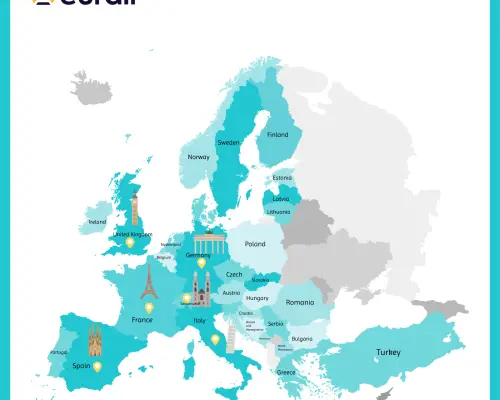
- Take trains freely across 33 European countries with Eurail Global Pass
- Choose from a Continuous Pass or Flexible Pass to best suit your travel
- Buy and make seat reservation online for a hassle free boarding experience
- Secure a Eurail Global Pass up to 11 months in advance, even without a confirmed travel date
- Book on KKday for instant confirmation, discounts and exclusive bundles
Product Info
— What You Can Expect —
Explore Europe with the Eurail Global Pass, which offers two types of validity options: Continuous Pass for a specific period or Flexi Pass within a regulated time frame. Travel up to 33 European countries, this cost-effective pass provides convenience and flexibility. Book now to enjoy the benefits of the Eurail Global Pass and discover Europe at a preferred pace while taking advantage of discounted prices.
— Important Info —
- Ticket Classes:
- 1st Class
- 2nd Class - Ticket Types:
- Continuous Pass: Valid for 15 days, 22 days, 1 month, 2 months, or 3 months
- Flexi Pass: Valid for 4, 5, or 7 days within 1 month / Valid for 10 or 15 days within 2 months - Applicable Countries: Austria, Belgium, Bosnia and Herzegovina, Bulgaria, Croatia, Czech Republic, Denmark, Finland, France, North Macedonia, Germany, United Kingdom, Greece, Hungary, Ireland, Italy, Lithuania, Luxembourg, Montenegro, Netherlands, Norway, Poland, Portugal, Romania, Serbia, Slovakia, Slovenia, Spain, Sweden, Switzerland, Turkey, Estonia, Latvia
- Applicable train routes
- Applicable discounts
— How to use —
- European Rail Pass User Guide & FAQs (English)
- Eurail Booking Guide (Chinese / Japanese)
— Recommended Products —
Explore the benefits of the Eurail Global Pass


Travel across 33 European countries unlimited times within the validity period


Access numerous discounts for city tours, cruises, transportation services and select outlets


Download the Eurail Rail Planner app to activate the Pass and plan your journey


Purchase Notice
— Eurail Global Pass Requirements —
- The name on the Pass must match the passport
- The Pass must be activated before the first train boarding or any use of discounts
- Due to high demand, there are limited seats available. For high speed rails and overnight trains, please reserve and pay in advance. See more on the seat reservation page
- First-class passes are valid for both first and second-class coaches. Second-class passes are valid only in second-class coaches
- Seat reservation fees are not included in Eurail Global Pass. Reserve a seat through KKday reservation page, Rail Europe, or a local train station ticket counter
- To enjoy offers included in the Eurail Global Pass, at least one valid day of the Pass must be used first
- In the event of a lost mobile phone, a pass replacement can be requested for free, please click here for details
- Force Majeure:
- A railway undertaking shall not be obliged to pay compensation if it can prove that the delay, missed connection, or cancellation was caused directly by or inherently linked to:
1. Extraordinary circumstances not related to railway operations include extreme weather conditions, significant natural disasters, or major public health crises. These are situations that the railway undertaking could not avoid despite taking all necessary precautions and for which it could not prevent the consequences
2. Fault on the part of the passenger
3. The actions of a third party that the railway undertaking could not avoid despite taking all necessary precautions, and for which it could not prevent the consequences, include situations such as individuals on the tracks, cable theft, onboard emergencies, law enforcement activities, sabotage, or terrorism
— Child Policy —
- Children under 4 years old enjoy free admission, provided they do not occupy a seat and are accompanied by at least one paying adult. Proof of age is required (e.g., a passport)
- Each adult can accompany a maximum of 2 children aged 4 to 11, and seats are included in child passes. If traveling with 3 or more children, please book child tickets for them
— Cancellation Policy —
- Activated passes are non-refundable, so please consider this before booking
Includes/Excludes
Eligible Users
Ineligible Nationalities/Regions
- Bosnia and Herzegovina, Latvia, Albania, Bulgaria, France, Serbia, Slovakia, Romania, United Kingdom, Italy, Germany, Montenegro, Czechia, Portugal, Spain, Netherlands, Turkey, Austria, Vatican City, Poland, Ireland, Hungary, Croatia, Lithuania, Estonia, Denmark, Finland, Iceland, Switzerland, Sweden, Greece, Norway, Monaco, Ukraine, Belgium, Russia
Notes
- Only non-European residents are eligible for the Eurail Global Pass
- Residents of the following countries are not eligible: Andorra, North Macedonia, Gibraltar, Guernsey, Liechtenstein, Moldova, San Marino, and Serbia
Reminders
According to EU regulations, passengers must hold a valid visa for the countries along the route, even if they do not disembark from the train or enter the border
Travelers may apply for partial refunds within 360 days from the purchase date, provided the Pass has not been activated or used. To apply for a refund, present an unused, unactivated, or unverified Eurail Global Pass. Contact customer service for assistance with this process. Please note that used passes are non-refundable
Multiple Passes can be used on the same electronic devices. Once the Passes are activated, swapping to another device is not permitted
A valid passport must be presented for inspection by station staff
The voucher received after booking is not a valid ticket. Refer to the reminders on the voucher for the Pass Number and follow the instructions in the "How to Use" section on this page to activate the pass
Eurail Global Pass does not include seat reservations. Pass holders are required to reserve their seats
To make a seat reservation, go to https://www.kkday.com/en/transportation/europe, or an applicable ticket counter, or Rail Planner in eligible train stations, and pay the handling fees
The services and discounts offered by Eurail Global Pass are subject to change or cancellation due to the pandemic, traffic, weather, and force majeure. Please visit the official website to check the operating info to avoid disappointments: https://www.eurail.com/en/eurail-passes/global-pass
This voucher is NOT a valid travel document or ticket for boarding trains. Below is a quick guide on how to retrieve, add, activate, and use the mobile pass via the Rail Planner App:
Step 1: Download the Rail Planner App on APP Store or Google Play, tap “Get started” and select “Eurail Pass”
Step 2: Select “Add a pass,” choose “Mobile Pass” and enter the last name and the 6-digit pass number (find on the “Reminder” section on the voucher)
Step 3: Select “Connect a trip” and enter a trip name. A trip serves as an e-folder for multiple train journeys, and each pass requires its own trip
Step 4: Activate the Pass by entering the passport number and selecting the first day of using the mobile pass for boarding. IMPORTANT: The date selected during booking does not matter. Choose any day within 11 months of the purchase date to activate the Pass and as the first travel day. The first travel day can be canceled anytime before the start of that day at 00:00 CET
Step 5: Go to “Planner” at the bottom to search and plan a train journey by entering the departure station, arrival station, date, and time
Step 6: Choose the preferred train and tap “Save journey” to add it to “My Trip.” IMPORTANT: Reservations are NOT included with the Eurail Pass. If reservations are required for the selected train (marked with “seat reservation required”), book and pay for the seat reservation separately in advance. Seats are limited and allocated on a first-come, first-served basis
Step 7: Go to “My Trip” at the bottom and add the saved train to the Pass and ticket for that travel day. Once a saved train is successfully added, it will be marked with a yellow light
Step 8: Go to “My Pass” at the bottom and tap “Show ticket” under the corresponding travel day for inspection. Each travel day has a separate ticket with a QR code, which can be used to access some train stations (e.g., in the Netherlands). IMPORTANT: The ticket inspector will scan the QR code to verify whether the train journey has been added to the ticket. They will also check the seat reservation, personal information, and may request to see the passport
See voucher for more information about seat reservation, refund policy and FAQs
How to Use
— Train Info —
- Denmark: DSB routes from Hamburg to Copenhagen will feature fewer stops, as trains will now travel over land instead of along the belt. This change will reduce the travel time to approximately 4 hours and 40 minutes
- Poland: A surcharge of approximately zł 43 applies to specific Express InterCity routes. Passengers who have already reserved a seat can pay the surcharge after boarding. For those without a reservation, the surcharge can be paid at a ticket counter when making the reservation
- Netherlands:
- Most train stations are equipped with entrance and exit gates. Travelers are required to have their ticket QR code scanned for entries or exits
- For trains departing for the Netherlands from Germany, a key card will be provided, the instructions are as follows:
1. Proceed to the station with a "Scan Ticket" sign
2. Scan the QR code (square-shaped)
3. The gate will open for travellers to enter or exit the station. If you have technical issues regarding the QR code, please push the blue button on the post box next to the gate to notify the on-site staff for assistance - Please refer to the "Seat Reservation Info" section for details on reservations
— Seat Reservations —
Trains within a single country, some trains/high-speed routes require advance reservations, for examples:
- France: Most domestic trains and high-speed trains, such as TGV high-speed trains and Thalys high-speed trains
- Italy: Some domestic trains and high-speed trains, such as Frecciarossa, Frecciargento, and Frecciabianca high-speed trains
- Spain: Some domestic trains and high-speed trains, such as Avant (AVN), AVE, Alvia (IC), Euromed (EUR), and Intercity (IC) trains
— How to Use —
- Download Eurail Rail Planner APP on Google Play or APP Store
- My Pass:
1. Add your pass
2. Mobile Pass
3. Enter your last name and Pass Number (please refer to your e-voucher in the email) - Add a Journey:
1. Connect a trip
2. Create a new trip and name it - Activate This Pass:
- Must be activated within the validity period.
- Enter your ID number
- Choose your first travel day - Plan Your Trip:
- Pick your preferred train, add a journey, and save it to My Trip
- Add the journey to your pass: go to My Trip, and tap Add to Pass - Present Your Pass (certain European stations do not have ticket gates, the ticket inspector on a train will be in charge of ticket verification)
1. In case of ticket verification, tap My Pass
2. Tap Show Tickets
3. The ticket inspector will scan the QR code
4. Please carry your passport as well, in case of identity verification - Journey Cancellation:
- You may Edit Journeys on the day of the journey, the editing function allows you to make journey cancellations or changes, but the journey date cannot be cancelled Rail Europe Pass FAQs
Validity Period
- Valid for use within 11month(s) from the date of issue; Invalid after expiration
Get Help


