

【50% Off】Japan eSIM|4G/5G Internet Daily, Total, and Unlimited Data eSIM
- Uses KDDI / Softbank network with excellent signal coverage
- Supports hotspot functionality to share internet with your travel companions
- No need to swap SIM cards; enjoy fast and seamless 4G/5G internet without the hassle
- Scan the eSIM QR code to install and use immediately; no need to pick up a physical card or wait for shipping
Package Options
What You Can Expect

Please confirm that the mobile phone can support eSIM before purchasing. The order cannot be canceled and refunded after ordering.

Before enabling eSIM, please update iOS to the latest version and connect to a stable WiFi. Old versions of iOS and unstable network are common reasons for eSIM activation failure.

Turn on the camera to scan the eSIM and click "Action Plan".
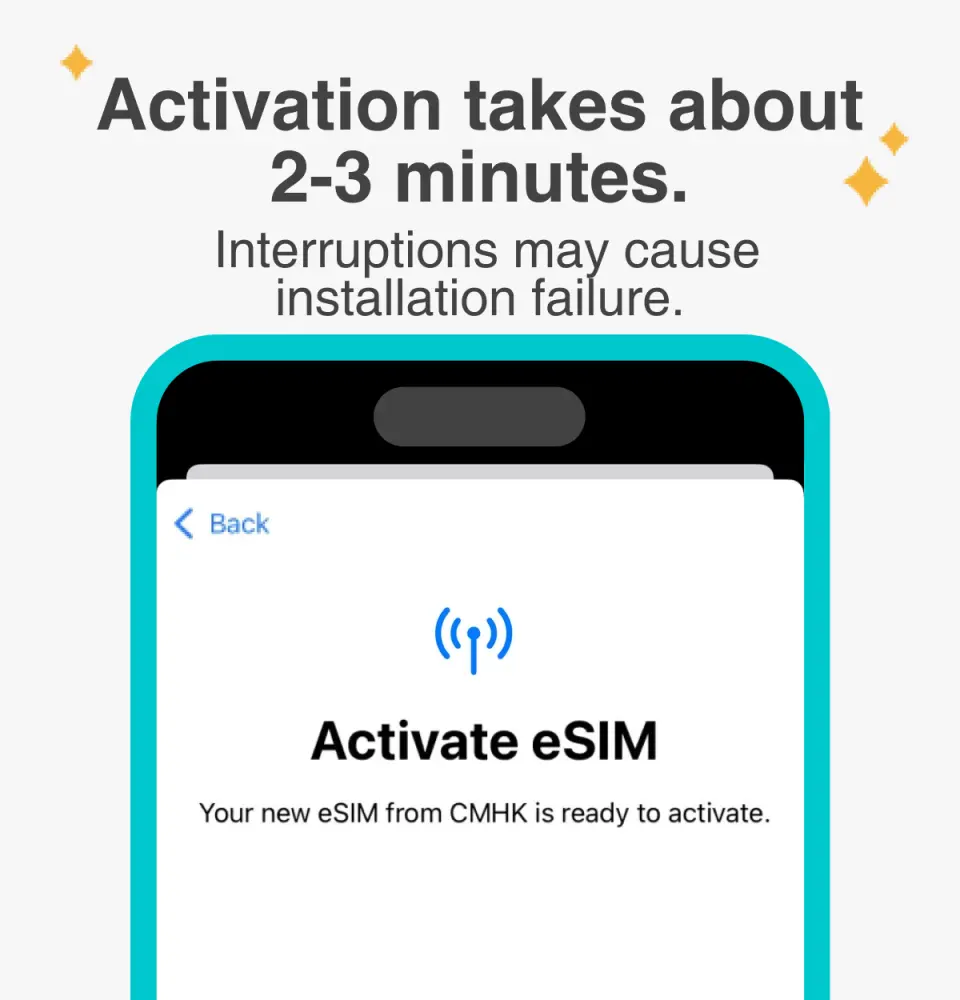
The activation time is about 2-3 minutes. The activation screen will pop up and the installation may fail.

Customizable eSIM names to facilitate management of multiple eSIMs

Select the default number to specify the original main phone number to receive messages (you must first apply to the original telecom operator to activate the main phone number for international roaming before you can receive text messages)

You can specify the main phone number to use iMessage and Facetime functions
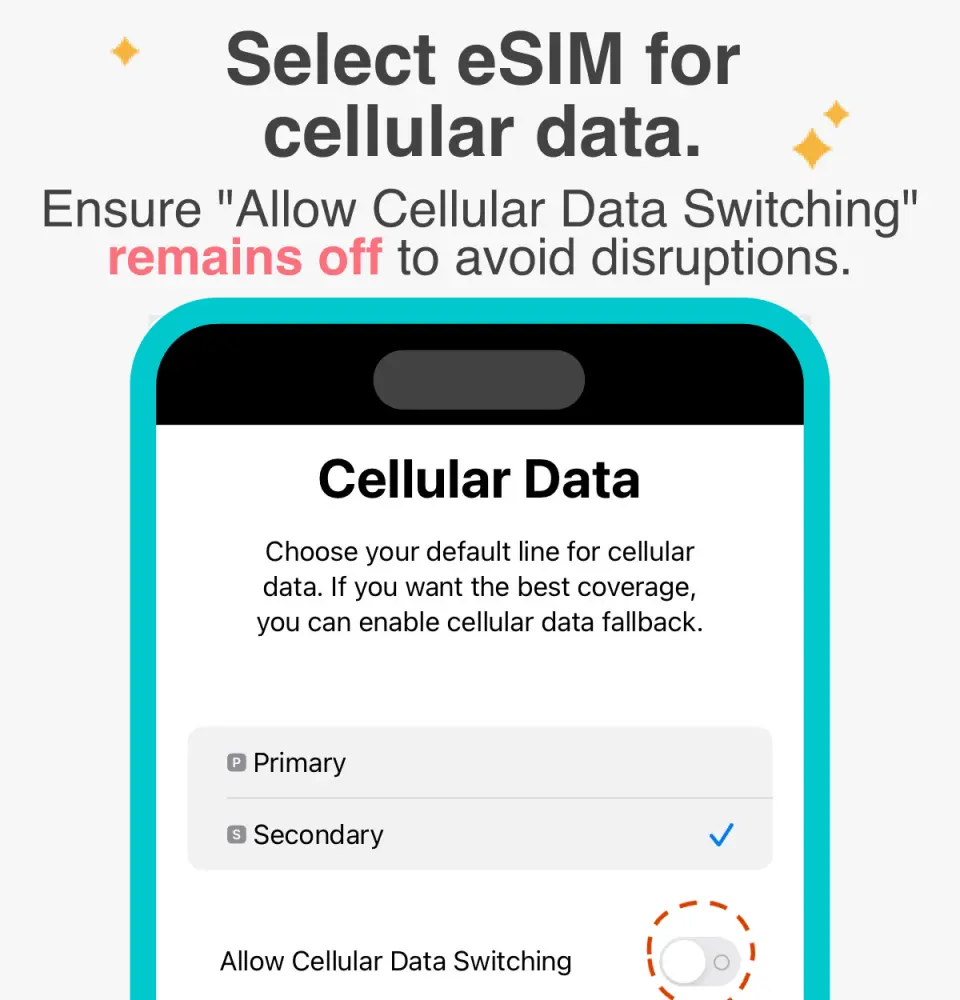
If you choose to use eSIM mobile data, "eSIM mobile data is not turned on" is a common reason for being unable to access the Internet.

You can also manually join eSIM when you cannot scan the QR Code

After copying the eSIM activation code, please follow the steps to manually add the eSIM information.
Purchase Notice
- Hotspot sharing may consume bandwidth, and network speed can vary based on the terminal device and geographical location. Therefore, network speed is not guaranteed; please confirm this before placing an order
- According to the Internet Fair Use Principle (FUP), users who consume large amounts of data in a short period may have their data traffic limited by the telecommunications company. It is recommended to avoid prolonged video streaming or system updates
- Please make sure that your mobile phone and operating system support the eSIM function before purchasing. No refunds will be issued for order cancellations due to incompatible devices
- This product only supports Apple iPhone and its iOS version 12.1 or later
- This product only Apple iPhone installation steps are provided
- Please note that iPhones sold in mainland China do not support eSIM. In Hong Kong and Macau, only iPhone 13 mini, iPhone 12 mini, iPhone SE 2020 and iPhone XS have eSIM capabilities (or go to Apple's official website for inquiries)
- Click on the website to learn about the latest news and precautions at any time
Includes/Excludes
- eSIM
- Please note that customer service is only in Chinese and English
Reminders
When confirming the order, please provide a complete and accurate email address
After placing the order and completing the payment, an email with the eSIM QR code will be sent within 48 hours
The QR code can only be scanned and installed once, and the device cannot be replaced after binding. Do not delete or remove the eSIM unless finished using it; otherwise, rescanning for installation will not be possible
The eSIM must be installed and activated within 90 days at the destination after the order is placed. The eSIM will expire after 90 days, and service will become unavailable with no refunds issued
Only delete or unbind the eSIM after finishing its use. To do so, go to Settings, then click “Cellular/Mobile” – “Delete eSIM"
Signal quality may be affected by factors such as location, terrain, building obstructions, number of users, and weather conditions
Days are counted using a natural day system (for example, if a 3-day internet access plan is purchased and installed at 10:00 am on 9/1, the first day lasts until 11:59 pm on 9/1, and the plan will conclude at 11:59 pm on 9/3)
Time is calculated based on the GMT +8 Hong Kong time zone as a standard, not the time zone of the destination
Remember to turn off data roaming on the original SIM card to avoid high roaming charges from connecting to the network
How to Use
- Each QR code can only be scanned once for installation; once bound, it cannot be used on different devices. Unless you are finished using the device, please do not delete or remove it, otherwise you will not be able to rescan and install it.
- An internet connection is required to install an eSIM. Please ensure there is available Wi-Fi or mobile data in your environment before installation.
- Apple iPhone eSIM installation steps: Settings > Mobile Services > Join a mobile plan > QR code > Tap Join a mobile plan
- After installing eSIM, please enable data roaming.
- Click the link to stay updated on the latest news and important information: https://www.happysim.hk/KKDayHappySIMUserGuide.html
Cancellation Policy
- Once the order has been completed, it cannot be canceled, modified, or refunded
- Due to time zone differences, the confirmed cancellation date is based on the supplier’s local time. Please allow 2–5 business days to process your cancellation request, after which the cancellation fee will be charged according to the product’s cancellation policy. Once your refund request is confirmed, KKday will initiate the refund to your original payment method within 15 days. The actual refund timing depends on your card-issuing bank’s policy.


