

Taiwan eSIM Unlimited Data eSIM eSIM|Doshirak eSIM
- An essential item to prepare for traveling to Taiwan, try using an E-SIM that can be used without replacing the SIM card.
- After arriving in Taiwan, you can enjoy internet data right away without having to receive a separate SIM card.
- You can use it by simply scanning the QR code on the voucher sent after your reservation is confirmed and installing it.
- Since it is not a physical SIM card, there is no risk of losing it.
Product Info
The content of this product is provided by machine translation and may not reflect the actual information, please take this into consideration before booking.
eSIM QR code shipped the same day


eSIM enabled device


Information on data plans


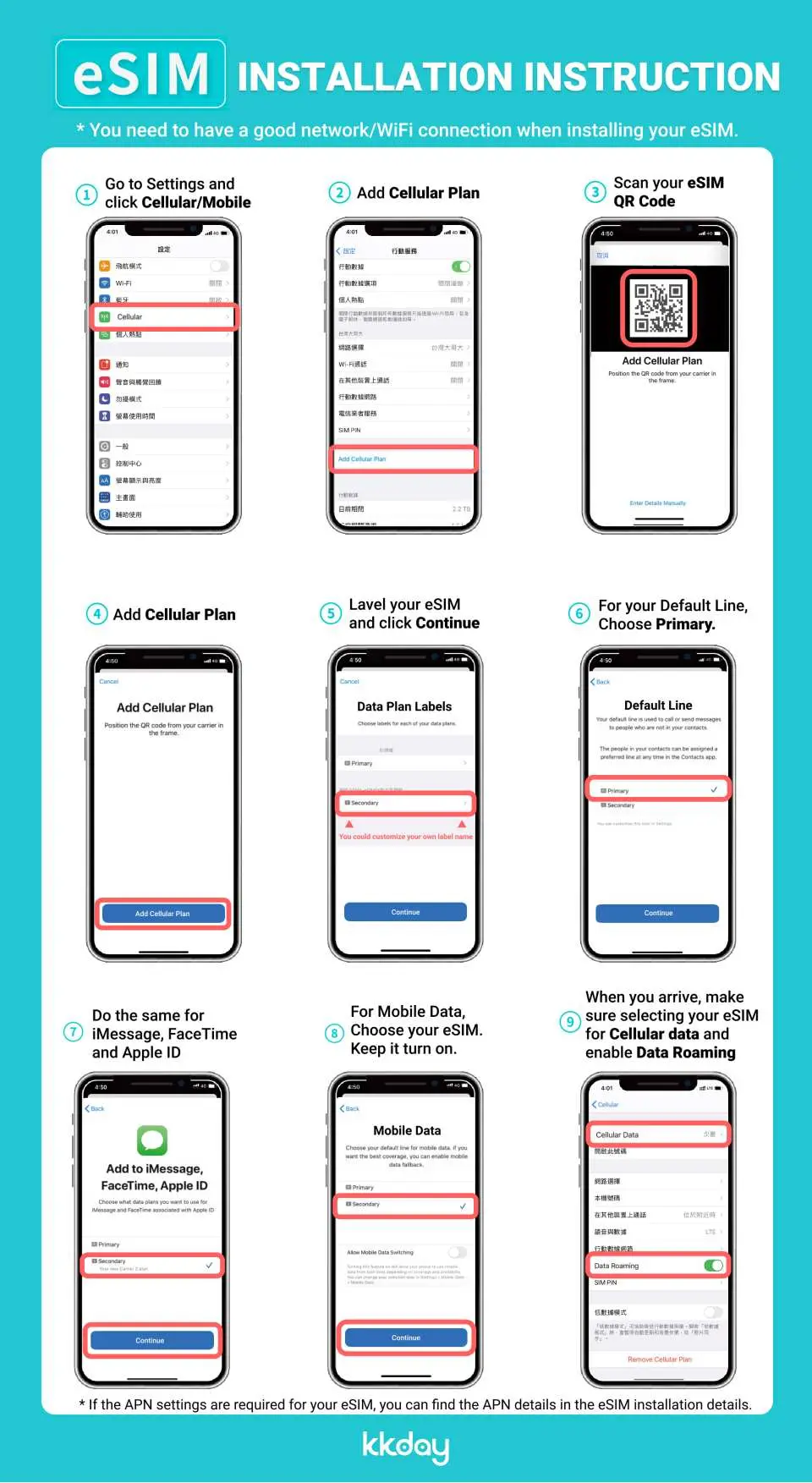
How to install and use eSIM

eSIM Notice


eSIM installation video - iPhone (iOS)
eSIM installation video - Android
SIM Card Specifications
| Data Usage Specifications | Unlimited data, 1GB, 2GB |
| Transmission Specifications | 4G |
| Signal Coverage Area | Taiwan |
| Mobile Carrier | Chunghwa |
| Supported Sizes | eSIM |
| Hotspot Sharing | Available |
| Supported Frequencies(4G) | B1(2100 MHz) |
| Top-Up Availability | Top-up unavailable |
| Excludes | Voice calls, Texts |
| Not Supported | SIM-locked device, Carrier-customized device, Mobile hotspot |
| Reminders | This product is provided by Wide Mobile Co., Ltd. |
Important Info
Reminders
Please make sure to check whether the model of the mobile phone you want to use eSIM supports eSIM service before purchasing. [Refer to the detailed page]
If you are a customer who has a mobile phone protection service set up, you must cancel the SIM lock and mobile phone protection service at the customer service center or homepage of the telecommunication company you are using to use it.
After purchase, product information (QR code) will be sent via e-mail or AlimTalk, and exchanges and refunds are not possible after the QR code is sent or scanned.
In order to register the purchased eSIM product to the device, data must be available. (Cellular network or wifi connection mode)
If you delete the registered cellular plan after QR scanning, eSIM cannot be used, so please keep the plan until the end of use.
It can be installed in advance at the departure point, and the usage date starts from the point of connecting to the destination network.
If possible, change the data roaming of the domestic carrier you are using to OFF before departure. (Incorrect operation may result in roaming charges abroad.)
Depending on the communication environment of the local carrier, data usage may not be smooth in some areas, and depending on the model used, you may be connected to 3G or 2G if it does not match the frequency band of the local carrier.
Product options (data amount, days of use, promotions, etc.) may change without prior notice in accordance with the terms and conditions of the provider.
If eSIM is not registered or cannot be used after registration (※ eSIM must be installed), please contact customer service. We cannot help you after returning, and returns/refunds are not available. [In Korea: 1566-9070 / When calling from abroad: 02-775-1401]
Once deleted, eSIM cannot be rescanned or restored. As above, refunds are not possible if you are unable to use the service due to your negligence or lack of familiarity with the user guide.
Exchanges and refunds are not possible after the QR code is sent or scanned.
No refunds will be made if service is unavailable due to network maintenance by the local carrier, natural disasters, or other reasons.
How to Use
STEP 1. ▶Buy ◀
- Please select the desired eSIM data capacity and usage period.
- When your order is confirmed, a QR code will be sent to your email and mobile phone. (* If you do not receive it, please request again through the customer center and we will send it immediately)
*Orders placed between 09:00 and 18:00 will be shipped the same day every 4 hours. (If you order after 18:00, it will be shipped the next day. Depending on the amount of orders, the delivery time may be slightly delayed.)
STEP 2. ▶Setting◀
1. Settings > Open the Cerulean menu
- Select 'Add Cellular Plan'.
(A rate plan can be added only in a network environment)
2. Add Cellular Plan > Scan QR Code
- Scan the QR code image received by text and email.
- If you cannot scan the QR code, you can set it manually.
3. Designation of rate plan label and line used
[Plan Label]
- Existing SIM → Main
- eSIM (Local SIM) → Secondary (freely set for travel, work, etc.)
[default line]
- Existing SIM → Call/Message, iMassage/FaceTime
- eSIM (Local SIM) → Cellular Data (Switching Allowed OFF)
4. Settings > Cellular > Turn off Cellular Data Toggle
- When using overseas, use after blocking cellular data conversion so that the existing SIM (main) cannot be used as data
* If data roaming is turned on while the cellular rate plan is selected as 'main', roaming charges may be charged from the domestic carrier (main line).
5. APN manual setting (when data is unavailable)
- Settings > Cellular > Cellular plan > Select eSIM plan > Cellular data network
- In most cases, it is set automatically, but in some cases, you may need to change the APN information.
* For APN information, check the purchased product detail page
Cancellation Policy
- Once the order has been completed, it cannot be canceled, modified, or refunded
- Due to time zone differences, the confirmed cancellation date is based on the supplier’s local time. Please allow 2–5 business days to process your cancellation request, after which the cancellation fee will be charged according to the product’s cancellation policy. Once the cancellation is confirmed, you will receive your refund within 14 working days.
Get Help


